
What you need
- A Government Gateway user ID and password. If you do not have one, create it when you sign in to HMRC online services for the first time.
- Your UTR. See how to find your UTR number.
- Time for the activation code to arrive by post.
HMRC is moving some accounts to GOV.UK One Login. Filing from software still needs a Government Gateway user ID and password.
Add Self Assessment to your Government Gateway
- Sign in to your HMRC online accountUse your Government Gateway user ID and password on GOV.UK.
- Add a taxChoose the option to add a tax, duty or scheme, then choose Self Assessment.
- Enter your UTREnter your 10-digit UTR and answer the security questions.
- Wait for the activation codeHMRC posts an activation code to the address it holds for you, usually within 10 working days.
- Activate Self AssessmentSign in again and enter the code. Use it before it expires; the letter gives the date.
Save the login in Self Assessment Software
Individuals save their own login. Accountants can save one practice login and use it for clients, or save each client’s own login.
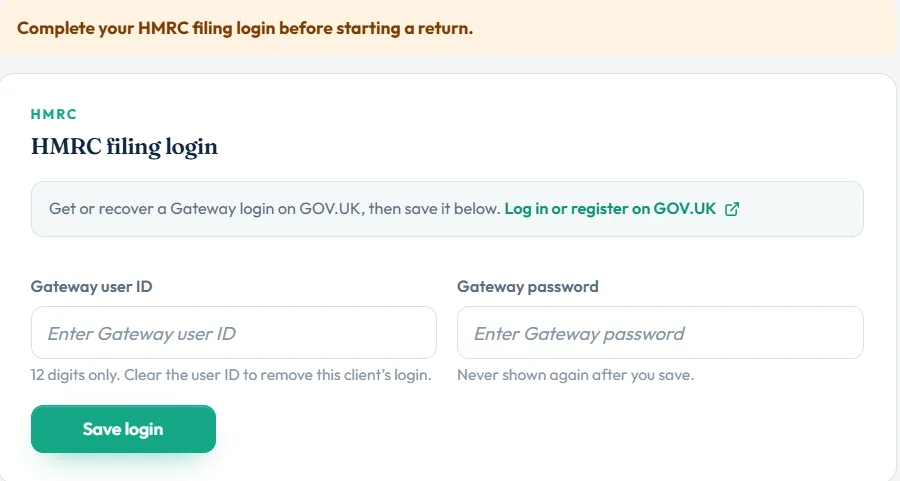
- Open HMRC detailsChoose HMRC details in the sidebar. Accountants open the client, then the HMRC page.
- Enter the Gateway user IDType the 12-digit Gateway user ID. Digits only, no spaces.
- Enter the Gateway passwordType the Gateway password. It is never shown again after you save.
- SaveChoose Save login. You see Government Gateway saved. You can submit now.
- Test the connectionOnce a login is saved, choose Test connection if it is shown. It checks HMRC accepts the login. It does not file a return.
Accountants: agent login or client login
A practice admin saves the practice Government Gateway under HMRC details with Save HMRC login. It is used when a client has no login of their own, and for partnership (SA800) returns.
On each client’s HMRC page, answer Use the agent’s HMRC details for this client? with Yes to file with the practice login, or No to save the client’s own Gateway user ID and password.
If you choose Yes before a practice login is saved, you see No agent Government Gateway is saved yet. Choose Add agent login to add it. The client must also have authorised you as their agent with HMRC.
Messages you might see
| Message | What it means |
|---|---|
| Gateway user ID is 12 digits only. | Remove spaces or letters. Check you used the Gateway user ID, not your email or UTR. |
| Government Gateway password must be between 4 and 128 characters. | Re-type the password. |
| Transaction Engine accepted the GovTalk header… No return was filed. | The test worked. HMRC accepted the login. |
| HMRC rejected the SOAP credentials… | HMRC did not accept the login. Check the user ID and password, and that Self Assessment is activated. See error 1046. |
| Cannot test: add a Government Gateway user ID and password… | No login is saved yet for this person. |
Still stuck?
- Sign in to your HMRC online account and check Self Assessment shows as active, not waiting for a code.
- Check you saved the Gateway user ID, not an email address or GOV.UK One Login.
- Reset the password on GOV.UK if you are unsure, then save the new one here.
- Lost the activation code or it expired? Request a new one from your HMRC online account.
Still not sorted? Contact us and tell us the page, the tax year and any message you see.
Questions answered
What is a Government Gateway user ID?
It is the 12-digit sign-in ID for HMRC online services. With a password, it lets you or your software send your Self Assessment to HMRC.
How long does the Self Assessment activation code take?
HMRC usually posts it within 10 working days, and longer if you live abroad. Use it before the expiry date on the letter.
Can I file without a Government Gateway login?
Not from software. HMRC checks a Government Gateway user ID and password with Self Assessment activated each time a return is sent.
Is my Gateway password safe in the software?
It is stored encrypted and is never shown again after you save it. It is only used when you file or test the connection.
Does Test connection file my return?
No. It only checks that HMRC accepts the login. Nothing is filed.
Can my accountant use their own login to file for me?
Yes, if you have authorised them as your agent with HMRC. They file with the practice Government Gateway instead of yours.
Official sources
These guides explain how HMRC's rules apply in Self Assessment Software. Check GOV.UK for your own circumstances.