
Start on File
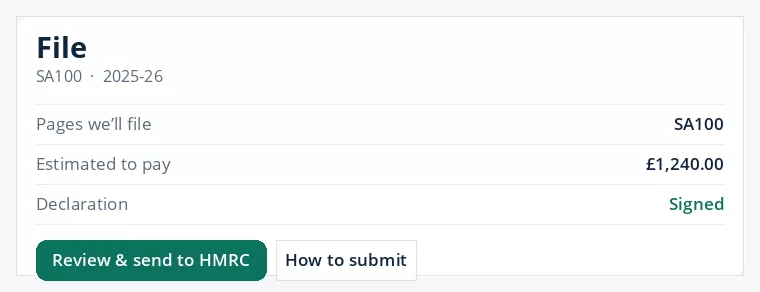
Open your return for this tax year and choose File. Check the pages, the amount, and that the declaration says Signed.
Six steps
- Open FileOn the return, open File.
- Sign the declarationIf it is not signed, choose Sign the declaration and save. Come back to File. It should say Signed.
- Open the filing deskChoose Review & send to HMRC. The page is titled File with HMRC.
- Clear the checksChoose Fix next to anything still open. When they are clear, choose Send for review. Each check is explained in filing checks.
- Pay, and save your HMRC login if askedChoose Pay and finish checkout. If you see HMRC login not added, enter your Gateway user ID and password and choose Save login. That login is not your password for this site. See Government Gateway.
- Submit to HMRCChoose Submit to HMRC live and confirm. Wait on the page. A button that says sandbox is a test, not a live filing.
When HMRC has accepted it
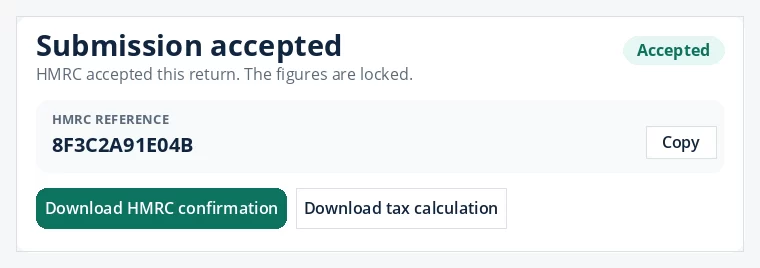
The title changes to Submission accepted and you get an HMRC reference. Choose Copy, then Download HMRC confirmation.
If it says HMRC is still checking, that is not a rejection. Come back later and choose Check with HMRC. Each reply is listed in confirm HMRC accepted your return.
Paying on the filing desk covers this tax year in Self Assessment Software. Pay any Income Tax or National Insurance to HMRC by their own deadlines.
If an accountant files for you
They email you a link. The page shows the tax year and the amount. Type your name and choose Approve this return. They then submit. You do not need a staff login, and you still pay any tax to HMRC yourself.
Still stuck?
- Only Sign the declaration is showing? Sign it first. Review & send to HMRC is next to it.
- A check still needs a fix? Use Fix. Do not untick a page you need.
- Asked to pay before you can submit? Finish Pay, then return to the desk.
- HMRC rejected the login? See error 1046.
Still not sorted? Contact us and tell us the page, the tax year and any message you see.
Questions answered
What are the steps to submit my return?
Open File, sign the declaration, choose Review & send to HMRC, clear the checks, choose Send for review, pay, then choose Submit to HMRC live and confirm.
Does the Pay button pay my tax to HMRC?
No. It pays for this tax year in Self Assessment Software. You pay any tax you owe to HMRC separately.
What if a filing check is still open?
Choose Fix next to that check and complete what it asks. The return can be sent for review when every check is clear.
What if HMRC does not accept the return?
Read the reason on the filing desk, correct it, and submit again. See HMRC rejected my tax return.
Official sources
These guides explain how HMRC's rules apply in Self Assessment Software. Check GOV.UK for your own circumstances.